As the name implies, RecyclerView recycles those individual elements. When an item scrolls off the screen, RecyclerView doesn’t destroy its view. Instead, RecyclerView reuses the view for new items that have scrolled onscreen. This reuse vastly improves performance, improving your app’s responsiveness and reducing power consumption.
https://developer.android.com/guide/topics/ui/layout/recyclerview
Sample pictures

Java code
package com.example.recyclerview;

import android.support.v7.app.AppCompatActivity;
import android.os.Bundle;
import android.support.v7.widget.LinearLayoutManager;
import android.support.v7.widget.RecyclerView;

import java.util.ArrayList;

public class MainActivity extends AppCompatActivity {

    ArrayList<Contact> contacts;
    RecyclerView recyclerView;
    ContactAdapter adapter;

    @Override
    protected void onCreate(Bundle savedInstanceState) {
        super.onCreate(savedInstanceState);
        setContentView(R.layout.activity_main);

         recyclerView = findViewById(R.id.rv_main);
         contacts = Contact.createContactsList(500);
         adapter = new ContactAdapter(contacts);

         recyclerView.setAdapter(adapter);
         recyclerView.setLayoutManager(new LinearLayoutManager(this));

    }
}
package com.example.recyclerview;
import android.support.annotation.NonNull;
import android.support.v7.widget.RecyclerView;
import android.view.LayoutInflater;
import android.view.View;
import android.view.ViewGroup;
import android.widget.CheckBox;
import android.widget.TextView;
import java.util.ArrayList;
public class ContactAdapter extends RecyclerView.Adapter<ContactAdapter.MyViewHolder> {
private ArrayList<Contact> contacts;
public class MyViewHolder extends RecyclerView.ViewHolder {
public TextView name;
public CheckBox chBox;
public MyViewHolder(@NonNull View itemView) {
super(itemView);
name = itemView.findViewById(R.id.rv_text);
chBox = itemView.findViewById(R.id.rv_chk);
}
}
public ContactAdapter(ArrayList<Contact> contacts) {
this.contacts = contacts;
}
@NonNull
@Override
public MyViewHolder onCreateViewHolder(@NonNull ViewGroup viewGroup, int viewType) {
View itemView = LayoutInflater.from(viewGroup.getContext()).
inflate(R.layout.recycler_view, viewGroup, false);
return new MyViewHolder(itemView);
}
@Override
public void onBindViewHolder(@NonNull MyViewHolder myViewHolder, int position) {
Contact contact = contacts.get(position);
myViewHolder.name.setText(contact.get_name());
myViewHolder.chBox.setChecked(contact.get_state());
}
@Override
public int getItemCount() {
return contacts.size();
}
}package com.example.recyclerview;
import java.util.ArrayList;
public class Contact {
private String _name;
private boolean _state;
public Contact(String name, boolean state) {
_name = name;
_state = state;
}
public String get_name() {
return _name;
}
public boolean get_state() {
return _state;
}
private static int lastContactId = 0;
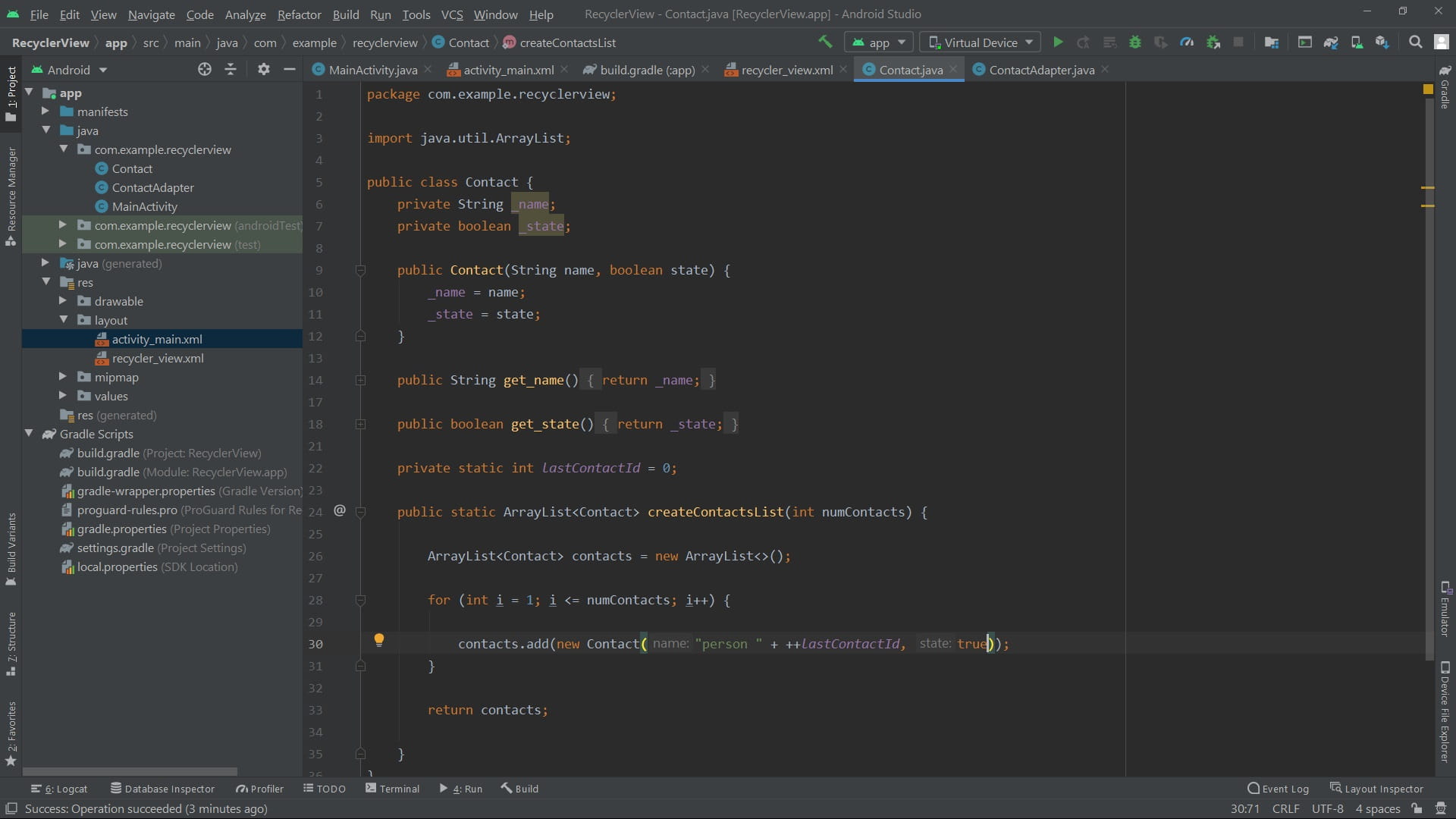
public static ArrayList<Contact> createContactsList(int numContacts) {
ArrayList<Contact> contacts = new ArrayList<>();
for (int i = 1; i <= numContacts; i++) {
contacts.add(new Contact("person " + ++lastContactId, true));
}
return contacts;
}
}XML
<?xml version="1.0" encoding="utf-8"?>
<android.support.constraint.ConstraintLayout xmlns:android="http://schemas.android.com/apk/res/android"
    xmlns:app="http://schemas.android.com/apk/res-auto"
    xmlns:tools="http://schemas.android.com/tools"
    android:layout_width="match_parent"
    android:layout_height="match_parent"
    tools:context=".MainActivity">

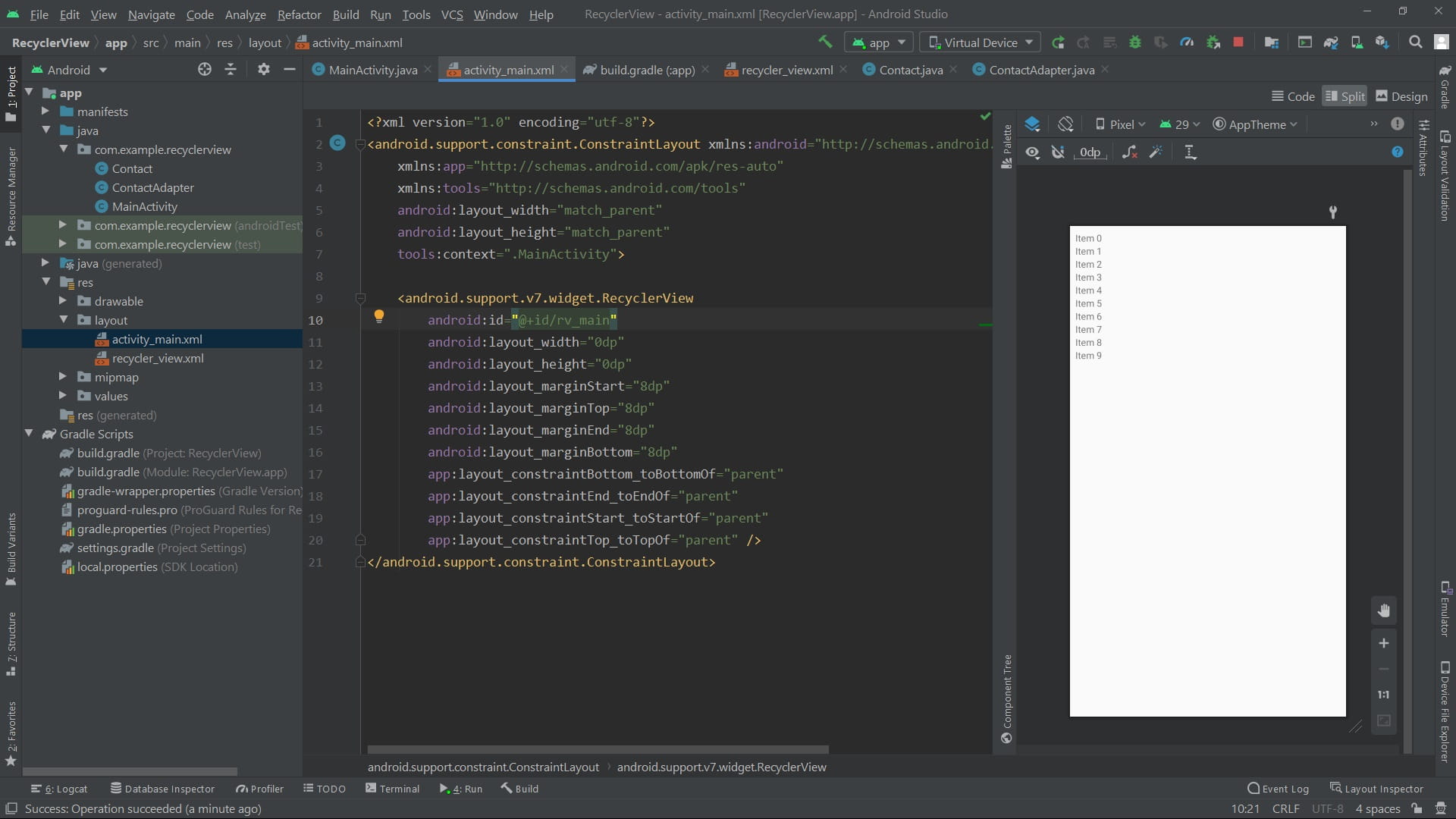
    <android.support.v7.widget.RecyclerView
        android:id="@+id/rv_main"
        android:layout_width="0dp"
        android:layout_height="0dp"
        android:layout_marginStart="8dp"
        android:layout_marginTop="8dp"
        android:layout_marginEnd="8dp"
        android:layout_marginBottom="8dp"
        app:layout_constraintBottom_toBottomOf="parent"
        app:layout_constraintEnd_toEndOf="parent"
        app:layout_constraintStart_toStartOf="parent"
        app:layout_constraintTop_toTopOf="parent" />
</android.support.constraint.ConstraintLayout>
<?xml version="1.0" encoding="utf-8"?>
<LinearLayout
xmlns:android="http://schemas.android.com/apk/res/android"
xmlns:tools="http://schemas.android.com/tools"
android:layout_width="match_parent"
android:layout_height="wrap_content"
android:padding="10dp"
android:layout_margin="10dp"
android:weightSum="10"
android:background="#B9B8B8">
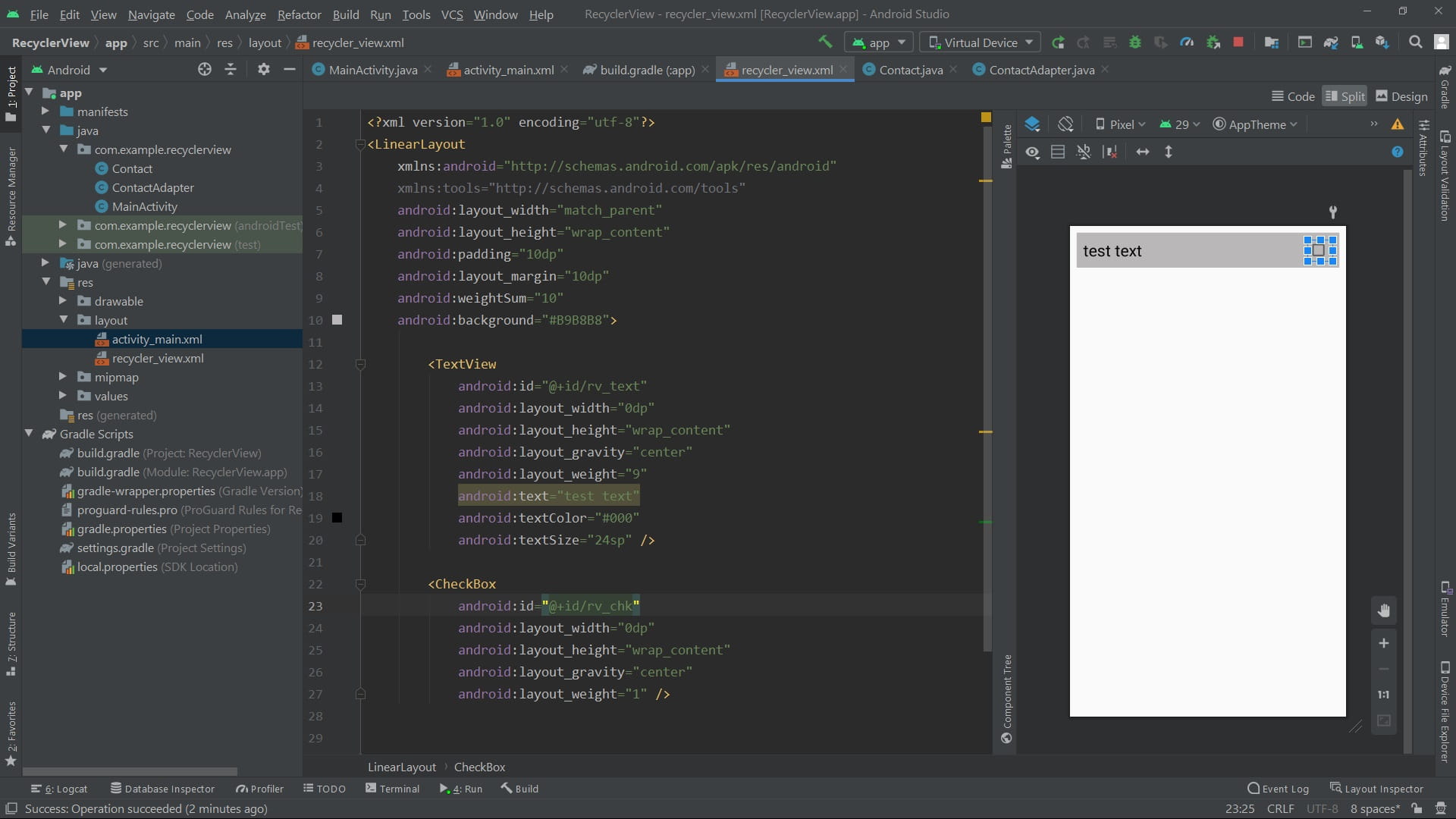
<TextView
android:id="@+id/rv_text"
android:layout_width="0dp"
android:layout_height="wrap_content"
android:layout_gravity="center"
android:layout_weight="9"
android:text="test text"
android:textColor="#000"
android:textSize="24sp" />
<CheckBox
android:id="@+id/rv_chk"
android:layout_width="0dp"
android:layout_height="wrap_content"
android:layout_gravity="center"
android:layout_weight="1" />
</LinearLayout>Sample pictures


Java code
package com.example.sharedpreference;

import android.content.Intent;
import android.os.Handler;
import android.support.v7.app.AppCompatActivity;
import android.os.Bundle;
import android.view.animation.Animation;
import android.view.animation.AnimationUtils;
import android.widget.TextView;

public class SplashScreen extends AppCompatActivity {

    @Override
    protected void onCreate(Bundle savedInstanceState) {
        super.onCreate(savedInstanceState);
        setContentView(R.layout.activity_splash_screen);

        StartAnim();

        new Handler().postDelayed(new Runnable() {
            @Override
            public void run() {

                startActivity(new Intent(getApplicationContext(), LoginActivity.class));

            }
        }, 3000);
    }
    void StartAnim(){
        TextView ta = findViewById(R.id.splash_text);
        Animation zoomIn;
        zoomIn = AnimationUtils.loadAnimation(getApplicationContext(), R.anim.zoom_in);
        ta.startAnimation(zoomIn);
    }

    @Override
    protected void onPause() {
        super.onPause();
        finish();
    }
}
package com.example.sharedpreference;
import android.content.Intent;
import android.content.SharedPreferences;
import android.support.v7.app.AppCompatActivity;
import android.os.Bundle;
import android.view.View;
import android.view.Window;
import android.view.WindowManager;
import android.widget.EditText;
import android.widget.Toast;
public class LoginActivity extends AppCompatActivity {
public SharedPreferences sharedPreferences;
SharedPreferences.Editor editor;
EditText et_name, et_pass;
String name,pass,_name,_pass;
@Override
protected void onCreate(Bundle savedInstanceState) {
super.onCreate(savedInstanceState);
setContentView(R.layout.activity_login);
RemoveToolbar();
findView();
sharedPreferences = getSharedPreferences("MyShared", MODE_PRIVATE);
editor = sharedPreferences.edit();
}
void RemoveToolbar(){
//Remove toolbar
Window w = getWindow();
w.setFlags(WindowManager.LayoutParams.FLAG_LAYOUT_NO_LIMITS,
WindowManager.LayoutParams.FLAG_LAYOUT_NO_LIMITS);
}
void findView() {
et_name = findViewById(R.id.actv_log_user_name);
et_pass = findViewById(R.id.actv_log_password);
}
public void LoginClick(View v) {
name = sharedPreferences.getString("NAME", "");
pass = sharedPreferences.getString("PASS", "");
_name = et_name.getText().toString();
_pass = et_pass.getText().toString();
if(name.equals("") && pass.equals("")){
Toast.makeText(this,"Please register",
Toast.LENGTH_SHORT).show();
}
else if (name .equals(_name) && pass.equals(_pass)) {
Toast.makeText(this,"You have successfully logged in",
Toast.LENGTH_LONG).show();
startActivity(new Intent(getApplicationContext(), MainActivity.class));
}
else {
Toast.makeText(this,"Username or password incorrect",
Toast.LENGTH_SHORT).show();
}
}
public void RegisterClick(View v) {
name = sharedPreferences.getString("NAME", "");
pass = sharedPreferences.getString("PASS", "");
_name = et_name.getText().toString();
_pass = et_pass.getText().toString();
if (!name.equals("") && !pass.equals("")) {
Toast.makeText(this, "You are already registered",
Toast.LENGTH_SHORT).show();
}
else if(!_name.equals("") && !_pass.equals("")){
editor.putString("NAME", _name);
editor.putString("PASS", _pass);
editor.apply();
editor.commit();
Toast.makeText(this, "Save data",
Toast.LENGTH_SHORT).show();
et_name.setText(null);
et_pass.setText(null);
}
else {
Toast.makeText(this, "Username or password fields are empty",
Toast.LENGTH_SHORT).show();
}
}
public void ClearClick(View v) {
editor.clear();
editor.apply();
editor.commit();
Toast.makeText(getApplicationContext(), "Clear data",
Toast.LENGTH_SHORT).show();
}
}XML
<?xml version="1.0" encoding="utf-8"?>
<manifest xmlns:android="http://schemas.android.com/apk/res/android"
    xmlns:tools="http://schemas.android.com/tools"
    package="com.example.sharedpreference">

    <application
        android:allowBackup="true"
        android:icon="@mipmap/ic_launcher"
        android:label="@string/app_name"
        android:roundIcon="@mipmap/ic_launcher_round"
        android:supportsRtl="true"
        android:theme="@style/AppTheme"
        tools:ignore="GoogleAppIndexingWarning">
        <activity android:name=".MainActivity"></activity>
        <activity
            android:name=".SplashScreen"
            android:theme="@style/splashScreen">
            <intent-filter>
                <action android:name="android.intent.action.MAIN" />

                <category android:name="android.intent.category.LAUNCHER" />
            </intent-filter>
        </activity>
        <activity
            android:name=".LoginActivity"
            android:theme="@style/LogIn" />
    </application>

</manifest>
<?xml version="1.0" encoding="utf-8"?>
<LinearLayout xmlns:android="http://schemas.android.com/apk/res/android"
xmlns:app="http://schemas.android.com/apk/res-auto"
xmlns:tools="http://schemas.android.com/tools"
android:layout_width="match_parent"
android:layout_height="match_parent"
android:background="@drawable/back6"
android:gravity="bottom"
android:orientation="vertical"
android:paddingBottom="100dp"
tools:context=".LoginActivity">
<ImageView
android:id="@+id/imageView"
android:layout_width="match_parent"
android:layout_height="200dp"
android:layout_marginBottom="150dp"
app:srcCompat="@drawable/avatar"
android:contentDescription="@string/todo" />
<EditText
android:id="@+id/actv_log_user_name"
android:layout_width="match_parent"
android:layout_height="wrap_content"
android:layout_marginLeft="50dp"
android:layout_marginRight="50dp"
android:layout_marginBottom="10dp"
android:background="@drawable/un_pass_background"
android:drawableStart="@drawable/ic_account_box_black_24dp"
android:drawablePadding="10dp"
android:hint="@string/user_name"
android:inputType="text"
android:padding="10dp"
android:textColorHint="@color/Text"
android:autofillHints="" />
<EditText
android:id="@+id/actv_log_password"
android:layout_width="match_parent"
android:layout_height="wrap_content"
android:layout_marginLeft="50dp"
android:layout_marginRight="50dp"
android:layout_marginBottom="10dp"
android:autofillHints=""
android:background="@drawable/un_pass_background"
android:drawableStart="@drawable/ic_vpn_key_black_24dp"
android:drawablePadding="10dp"
android:hint="@string/password"
android:inputType="textPassword"
android:padding="10dp"
android:textColorHint="@color/Text" />
<Button
android:id="@+id/actv_log_login_butt"
android:layout_width="match_parent"
android:layout_height="wrap_content"
android:layout_marginLeft="50dp"
android:layout_marginRight="50dp"
android:layout_marginBottom="30dp"
android:background="@drawable/login_butt_back"
android:onClick="LoginClick"
android:text="@string/login"
android:textColor="@color/Text"
android:textSize="20sp" />
<LinearLayout
android:layout_width="match_parent"
android:layout_height="wrap_content"
android:layout_marginBottom="50dp"
android:weightSum="2">
<TextView
android:id="@+id/actv_log_clear_account"
android:layout_width="0dp"
android:layout_height="wrap_content"
android:layout_weight="1"
android:gravity="center"
android:onClick="ClearClick"
android:text="@string/clear_data"
android:textColor="@color/Text"
android:textSize="18sp" />
<TextView
android:id="@+id/actv_log_create_account"
android:layout_width="0dp"
android:layout_height="wrap_content"
android:layout_weight="1"
android:gravity="center"
android:onClick="RegisterClick"
android:text="@string/register"
android:textColor="@color/Text"
android:textSize="18sp" />
</LinearLayout>
</LinearLayout><?xml version="1.0" encoding="utf-8"?>
<LinearLayout xmlns:android="http://schemas.android.com/apk/res/android"
xmlns:app="http://schemas.android.com/apk/res-auto"
xmlns:tools="http://schemas.android.com/tools"
android:layout_width="match_parent"
android:layout_height="match_parent"
tools:context=".SplashScreen"
android:background="@color/SplashScreen"
android:gravity="center">
<TextView
android:id="@+id/splash_text"
android:layout_width="wrap_content"
android:layout_height="wrap_content"
android:text="Shared Preferences"
android:textColor="@color/Text"
android:textSize="40sp"
android:textStyle="bold" />
</LinearLayout><?xml version="1.0" encoding="utf-8"?>
<set xmlns:android="http://schemas.android.com/apk/res/android"
android:duration="2000">
<alpha android:fromAlpha="0"/>
<scale
android:fromXScale="0"
android:fromYScale="0"
android:pivotX="50%"
android:pivotY="50%"
android:toXScale="1"
android:toYScale="1"
/>
</set>Sample pictures


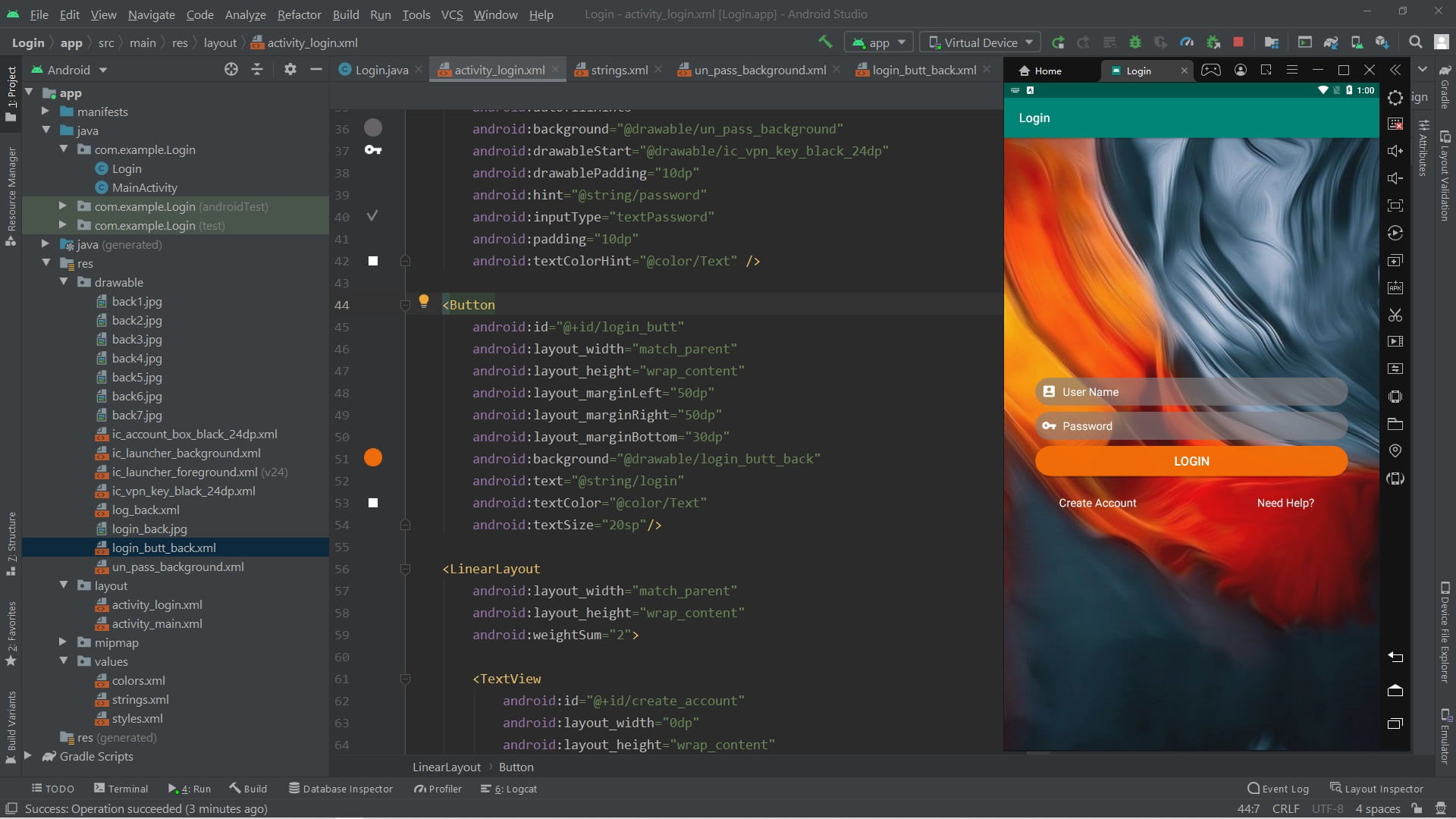
Java code
package com.example.Login;

import android.support.v7.app.AppCompatActivity;
import android.os.Bundle;
import android.view.Window;
import android.view.WindowManager;

public class Login extends AppCompatActivity {

    @Override
    protected void onCreate(Bundle savedInstanceState) {
        super.onCreate(savedInstanceState);
        setContentView(R.layout.activity_login);

       //Remove toolbar
       // Window w = getWindow();
       // w.setFlags(WindowManager.LayoutParams.FLAG_LAYOUT_NO_LIMITS,
       //           WindowManager.LayoutParams.FLAG_LAYOUT_NO_LIMITS);
    }
}
XML
<?xml version="1.0" encoding="utf-8"?>
<LinearLayout xmlns:android="http://schemas.android.com/apk/res/android"
    xmlns:app="http://schemas.android.com/apk/res-auto"
    xmlns:tools="http://schemas.android.com/tools"
    android:layout_width="match_parent"
    android:layout_height="match_parent"
    tools:context=".Login"
    android:orientation="vertical"
    android:gravity="center"
    android:background="@drawable/log_back">

    <EditText
        android:id="@+id/user_name"
        android:layout_width="match_parent"
        android:layout_height="wrap_content"
        android:layout_marginLeft="50dp"
        android:layout_marginRight="50dp"
        android:layout_marginBottom="10dp"
        android:autofillHints=""
        android:background="@drawable/un_pass_background"
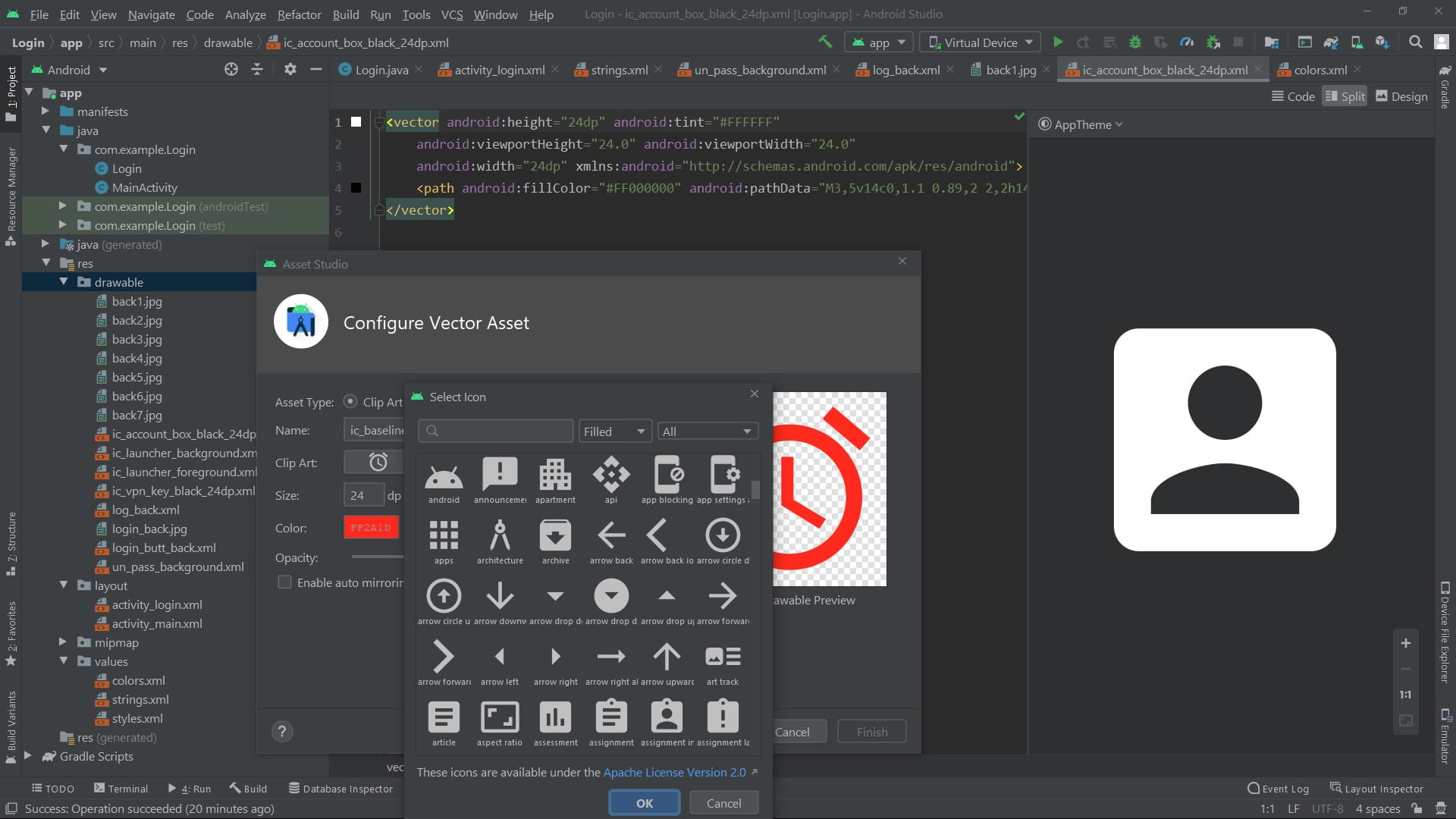
        android:drawableStart="@drawable/ic_account_box_black_24dp"
        android:drawablePadding="10dp"
        android:hint="@string/user_name"
        android:inputType="textPersonName"
        android:padding="10dp"
        android:textColorHint="@color/Text" />

    <EditText
        android:id="@+id/password"
        android:layout_width="match_parent"
        android:layout_height="wrap_content"
        android:layout_marginLeft="50dp"
        android:layout_marginRight="50dp"
        android:layout_marginBottom="10dp"
        android:autofillHints=""
        android:background="@drawable/un_pass_background"
        android:drawableStart="@drawable/ic_vpn_key_black_24dp"
        android:drawablePadding="10dp"
        android:hint="@string/password"
        android:inputType="textPassword"
        android:padding="10dp"
        android:textColorHint="@color/Text" />

    <Button
        android:id="@+id/login_butt"
        android:layout_width="match_parent"
        android:layout_height="wrap_content"
        android:layout_marginLeft="50dp"
        android:layout_marginRight="50dp"
        android:layout_marginBottom="30dp"
        android:background="@drawable/login_butt_back"
        android:text="@string/login"
        android:textColor="@color/Text"
        android:textSize="20sp"/>

    <LinearLayout
        android:layout_width="match_parent"
        android:layout_height="wrap_content"
        android:weightSum="2">

        <TextView
            android:id="@+id/create_account"
            android:layout_width="0dp"
            android:layout_height="wrap_content"
            android:layout_weight="1"
            android:gravity="center"
            android:text="@string/create_account"
            android:textColor="@color/Text"
            android:textSize="18sp" />

        <TextView
            android:id="@+id/need_help"
            android:layout_width="0dp"
            android:layout_height="wrap_content"
            android:layout_weight="1"
            android:gravity="center"
            android:text="@string/need_help"
            android:textColor="@color/Text"
            android:textSize="18sp" />

    </LinearLayout>

</LinearLayout>
<?xml version="1.0" encoding="utf-8"?>
<layer-list xmlns:android="http://schemas.android.com/apk/res/android">
<item>
<bitmap android:src="@drawable/back1"></bitmap>
</item>
<item>
<shape>
<solid android:color="@color/LoginBack"></solid>
</shape>
</item>
</layer-list><?xml version="1.0" encoding="utf-8"?>
<shape xmlns:android="http://schemas.android.com/apk/res/android">
<solid android:color="@color/LoginButt">
</solid>
<corners android:radius="90dp" >
</corners>
</shape><?xml version="1.0" encoding="utf-8"?>
<shape xmlns:android="http://schemas.android.com/apk/res/android">
<solid android:color="@color/UnPassBack">
</solid>
<corners android:radius="90dp" >
</corners>
</shape><?xml version="1.0" encoding="utf-8"?>
<resources>
<color name="colorPrimary">#008577</color>
<color name="colorPrimaryDark">#00574B</color>
<color name="colorAccent">#D81B60</color>
<color name="UnPassBack">#A1857E80</color>
<color name="LoginBack">#1AB1AAAC</color>
<color name="LoginButt">#F5F56E07</color>
<color name="Text">#FFFFFFFF</color>
</resources><resources>
<string name="app_name">Login</string>
<string name="password">Password</string>
<string name="login">LOGIN</string>
<string name="create_account">Create Account</string>
<string name="need_help">Need Help?</string>
<string name="user_name">User Name</string>
</resources><resources>
<!-- Base application theme. -->
<style name="AppTheme" parent="Theme.AppCompat.Light.DarkActionBar">
<!-- or "Theme.AppCompat.Light.NoActionBar"-->
<!-- Customize your theme here. -->
<item name="colorPrimary">@color/colorPrimary</item>
<item name="colorPrimaryDark">@color/colorPrimaryDark</item>
<item name="colorAccent">@color/colorAccent</item>
</style>
</resources>To add a navigation drawer, first declare a DrawerLayout as the root view.
Inside the DrawerLayout, add a layout for the main UI content and another view that contains the contents of the navigation drawer.
Reference:
https://developer.android.com/guide/navigation/navigation-ui
Sample pictures
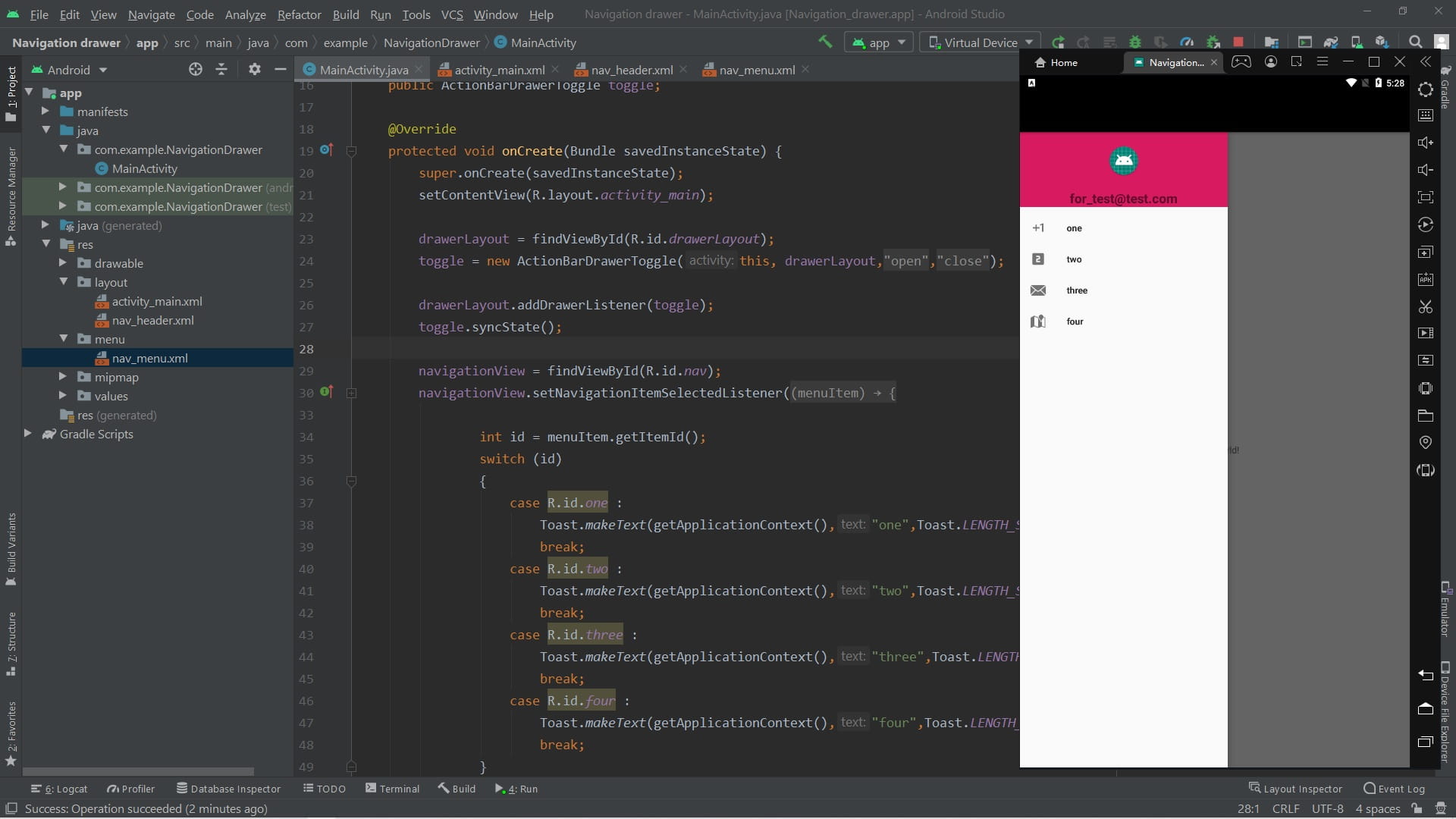
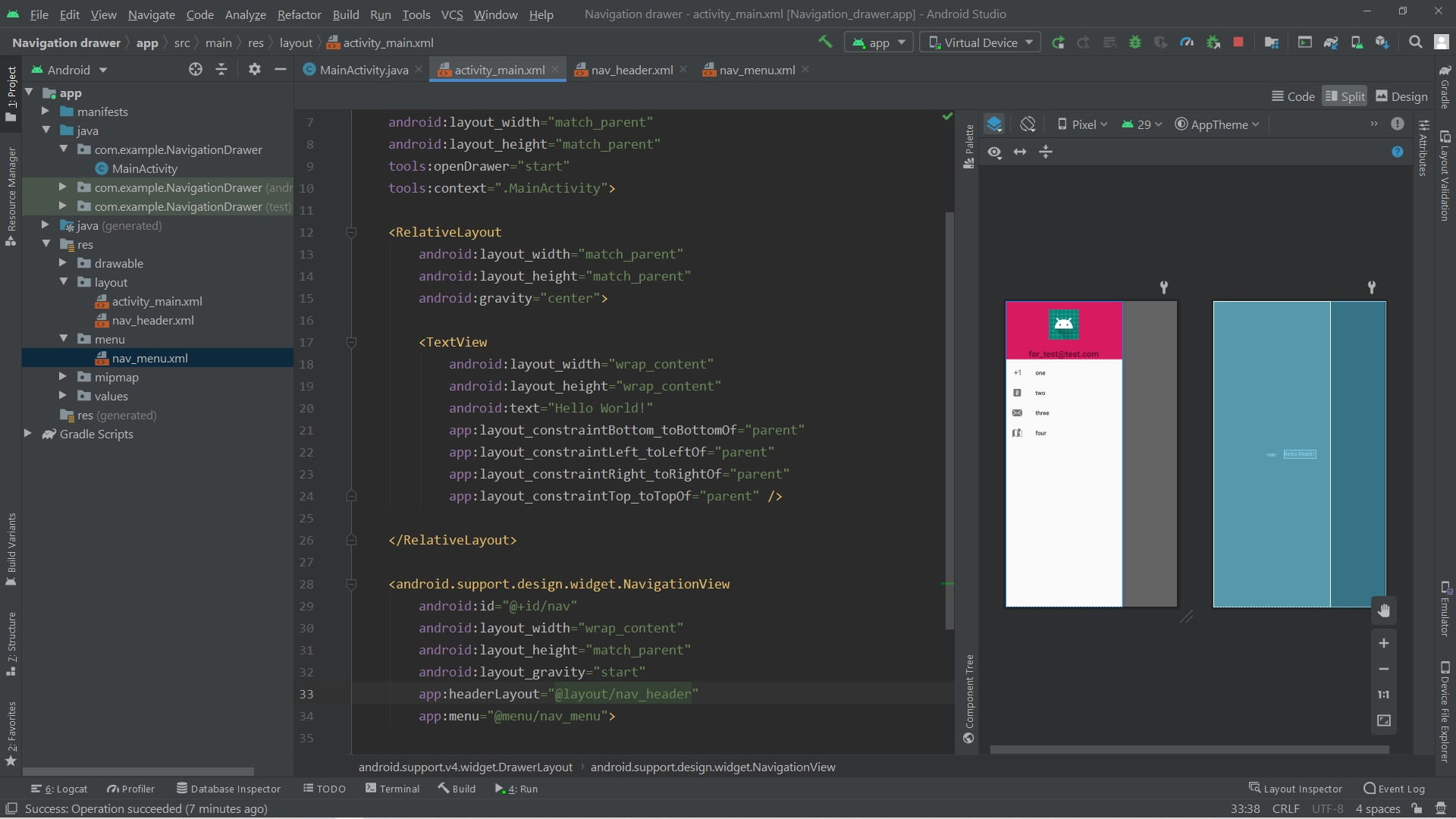
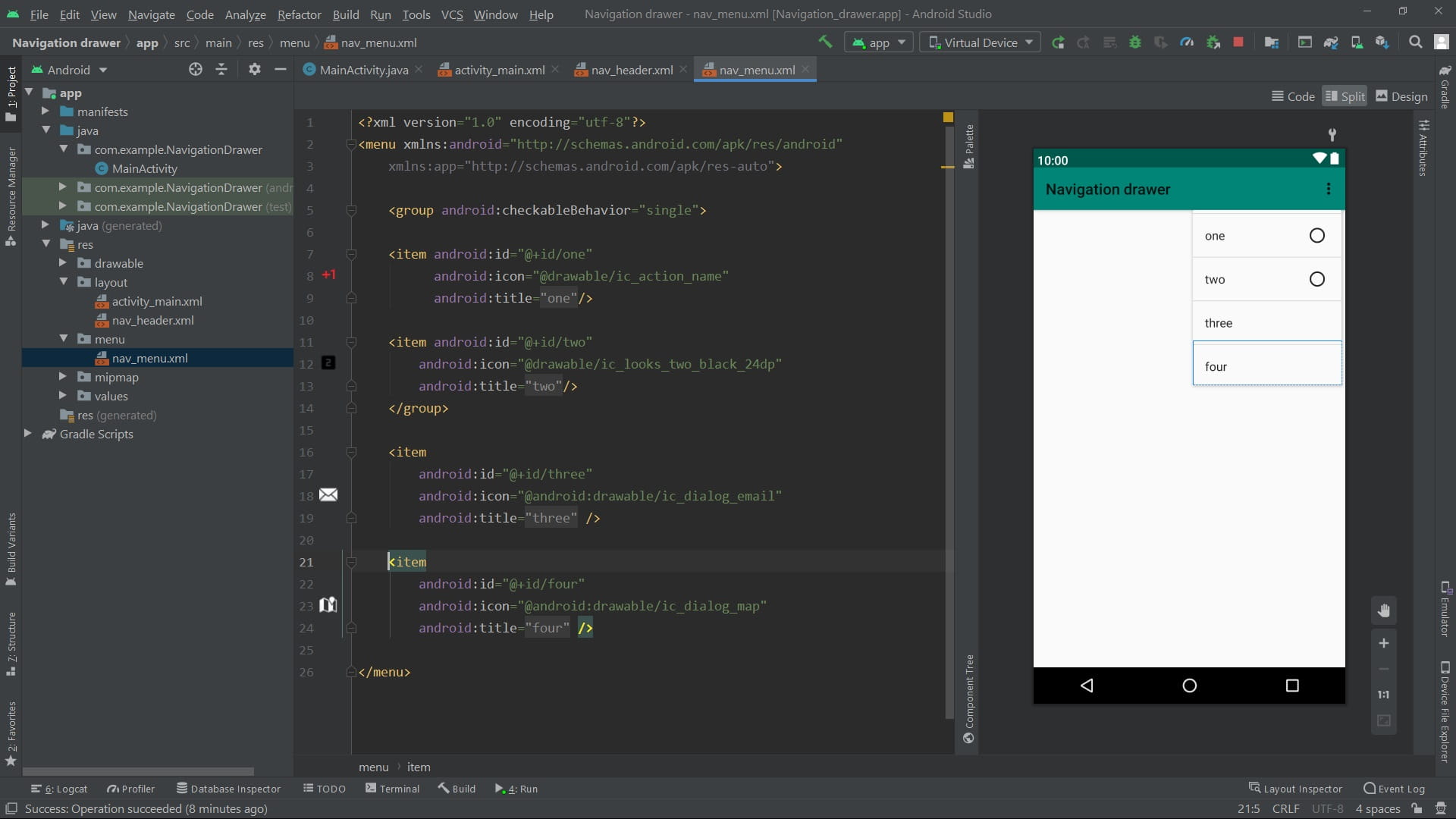

Java code
package com.example.NavigationDrawer;

import android.support.annotation.NonNull;
import android.support.design.widget.NavigationView;
import android.support.v4.widget.DrawerLayout;
import android.support.v7.app.ActionBarDrawerToggle;
import android.support.v7.app.AppCompatActivity;
import android.os.Bundle;
import android.view.MenuItem;
import android.widget.Toast;

public class MainActivity extends AppCompatActivity {

    public NavigationView navigationView;
    public DrawerLayout drawerLayout;
    public ActionBarDrawerToggle toggle;

    @Override
    protected void onCreate(Bundle savedInstanceState) {
        super.onCreate(savedInstanceState);
        setContentView(R.layout.activity_main);

        drawerLayout = findViewById(R.id.drawerLayout);
        toggle = new ActionBarDrawerToggle(this, drawerLayout,R.string.open,R.string.close);

        drawerLayout.addDrawerListener(toggle);
        toggle.syncState();

        navigationView = findViewById(R.id.nav);
        navigationView.setNavigationItemSelectedListener(new NavigationView.OnNavigationItemSelectedListener() {
            @Override
            public boolean onNavigationItemSelected(@NonNull MenuItem menuItem) {

                int id = menuItem.getItemId();
                switch (id)
                {
                    case R.id.one :
                        Toast.makeText(getApplicationContext(),"one",Toast.LENGTH_SHORT).show();
                        break;
                    case R.id.two :
                        Toast.makeText(getApplicationContext(),"two",Toast.LENGTH_SHORT).show();
                        break;
                    case R.id.three :
                        Toast.makeText(getApplicationContext(),"three",Toast.LENGTH_SHORT).show();
                        break;
                    case R.id.four :
                        Toast.makeText(getApplicationContext(),"four",Toast.LENGTH_SHORT).show();
                        break;
                }
                return true;
            }
        });
    }

    @Override
    public boolean onOptionsItemSelected(MenuItem item) {
        if(toggle.onOptionsItemSelected(item))
        {
            return true;
        }
        return super.onOptionsItemSelected(item);

    }

}
XML
<?xml version="1.0" encoding="utf-8"?>
<android.support.v4.widget.DrawerLayout
    xmlns:android="http://schemas.android.com/apk/res/android"
    xmlns:app="http://schemas.android.com/apk/res-auto"
    xmlns:tools="http://schemas.android.com/tools"
    android:id="@+id/drawerLayout"
    android:layout_width="match_parent"
    android:layout_height="match_parent"
    tools:openDrawer="start"
    tools:context=".MainActivity">

    <RelativeLayout
        android:layout_width="match_parent"
        android:layout_height="match_parent"
        android:gravity="center">

        <TextView
            android:layout_width="wrap_content"
            android:layout_height="wrap_content"
            android:text="Hello World!"
            app:layout_constraintBottom_toBottomOf="parent"
            app:layout_constraintLeft_toLeftOf="parent"
            app:layout_constraintRight_toRightOf="parent"
            app:layout_constraintTop_toTopOf="parent" />

    </RelativeLayout>

    <android.support.design.widget.NavigationView
        android:id="@+id/nav"
        android:layout_width="wrap_content"
        android:layout_height="match_parent"
        android:layout_gravity="start"
        app:headerLayout="@layout/nav_header"
        app:menu="@menu/nav_menu">

    </android.support.design.widget.NavigationView>


</android.support.v4.widget.DrawerLayout>
<?xml version="1.0" encoding="utf-8"?>
<LinearLayout
xmlns:android="http://schemas.android.com/apk/res/android"
xmlns:app="http://schemas.android.com/apk/res-auto"
android:layout_width="match_parent"
android:layout_height="wrap_content"
android:background="@color/colorAccent"
android:gravity="center"
android:orientation="vertical">
<ImageView
android:layout_width="wrap_content"
android:layout_height="wrap_content"
android:layout_margin="20dp"
android:contentDescription="@string/i"
app:srcCompat="@mipmap/ic_launcher_round" />
<TextView
android:layout_width="wrap_content"
android:layout_height="wrap_content"
android:text="@string/for_test_test_com"
android:textSize="20sp"
android:textStyle="bold"/>
</LinearLayout><?xml version="1.0" encoding="utf-8"?>
<menu xmlns:android="http://schemas.android.com/apk/res/android"
xmlns:app="http://schemas.android.com/apk/res-auto">
<group android:checkableBehavior="single">
<item android:id="@+id/one"
android:icon="@drawable/ic_action_name"
android:title="@string/one"/>
<item android:id="@+id/two"
android:icon="@drawable/ic_looks_two_black_24dp"
android:title="@string/two"/>
</group>
<item
android:id="@+id/three"
android:icon="@android:drawable/ic_dialog_email"
android:title="@string/three" />
<item
android:id="@+id/four"
android:icon="@android:drawable/ic_dialog_map"
android:title="@string/four" />
</menu>Picasso:
A powerful image downloading and caching library for Android.
Images add much-needed context and visual flair to Android applications.
Picasso allows for hassle-free image loading in your application—often in one line of code!
Many common pitfalls of image loading on Android are handled automatically by Picasso:
- Handling ImageView recycling and download cancelation in an adapter.
- Complex image transformations with minimal memory use.
- Automatic memory and disk caching.
Glide:
Glide is a fast and efficient open source media management and image loading framework for Android that wraps media decoding, memory and disk caching, and resource pooling into a simple and easy to use interface.
Glide supports fetching, decoding, and displaying video stills, images, and animated GIFs. Glide includes a flexible API that allows developers to plug in to almost any network stack. By default Glide uses a custom HttpUrlConnection based stack, but also includes utility libraries plug in to Google’s Volley project or Square’s OkHttp library instead.
Glide’s primary focus is on making scrolling any kind of a list of images as smooth and fast as possible, but Glide is also effective for almost any case where you need to fetch, resize, and display a remote image.
Sample pictures


Java code
package com.example.picasso_glide;

import android.support.v7.app.AppCompatActivity;
import android.os.Bundle;
import android.widget.ImageView;
import com.bumptech.glide.Glide;
import com.bumptech.glide.load.resource.bitmap.RoundedCorners;
import com.squareup.picasso.Picasso;

public class MainActivity extends AppCompatActivity {

    @Override
    protected void onCreate(Bundle savedInstanceState) {
        super.onCreate(savedInstanceState);
        setContentView(R.layout.activity_main);

        ImageView image1 = findViewById(R.id.imageView1);
        ImageView image2 = findViewById(R.id.imageView2);

        String image1Url = "https://wallpapercave.com/wp/wp7911121.jpg";
        String image2Url = "https://wallpapercave.com/uwp/uwp552608.jpeg";


        Glide.with(this).load(image1Url)
                .transform(new RoundedCorners(30))
                .into(image1);

        Picasso.get().load(image2Url)
                .resize(600,500)
                .into(image2);

    }
}
XML
<?xml version="1.0" encoding="utf-8"?>
<LinearLayout xmlns:android="http://schemas.android.com/apk/res/android"
    xmlns:app="http://schemas.android.com/apk/res-auto"
    xmlns:tools="http://schemas.android.com/tools"
    android:layout_width="match_parent"
    android:layout_height="match_parent"
    android:orientation="vertical"
    android:background="@color/colorAccent"
    tools:context=".MainActivity"
    android:weightSum="2">

    <ImageView
        android:id="@+id/imageView1"
        android:layout_width="match_parent"
        android:layout_height="1dp"
        android:layout_marginStart="8dp"
        android:layout_marginTop="100dp"
        android:layout_marginEnd="8dp"
        android:layout_marginBottom="8dp"
        android:layout_weight="1"
        android:contentDescription="@string/image_1"
        android:scaleType="center"
        app:srcCompat="@color/colorPrimary" />

    <ImageView
        android:id="@+id/imageView2"
        android:layout_width="match_parent"
        android:layout_height="1dp"
        android:layout_marginStart="8dp"
        android:layout_marginTop="100dp"
        android:layout_marginEnd="8dp"
        android:layout_marginBottom="100dp"
        android:layout_weight="1"
        android:contentDescription="@string/image_2"
        android:scaleType="center"
        app:srcCompat="@color/colorPrimaryDark" />
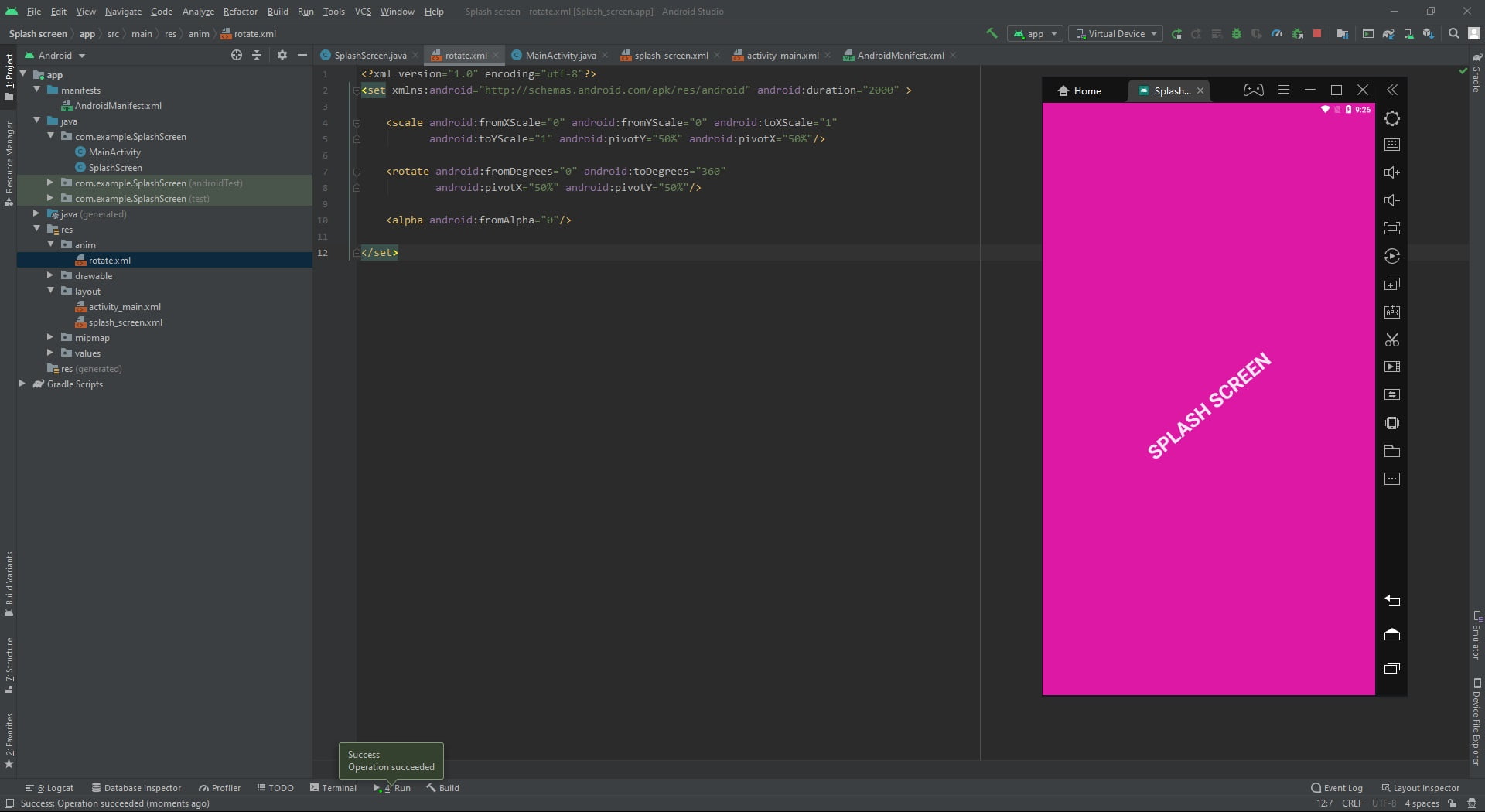
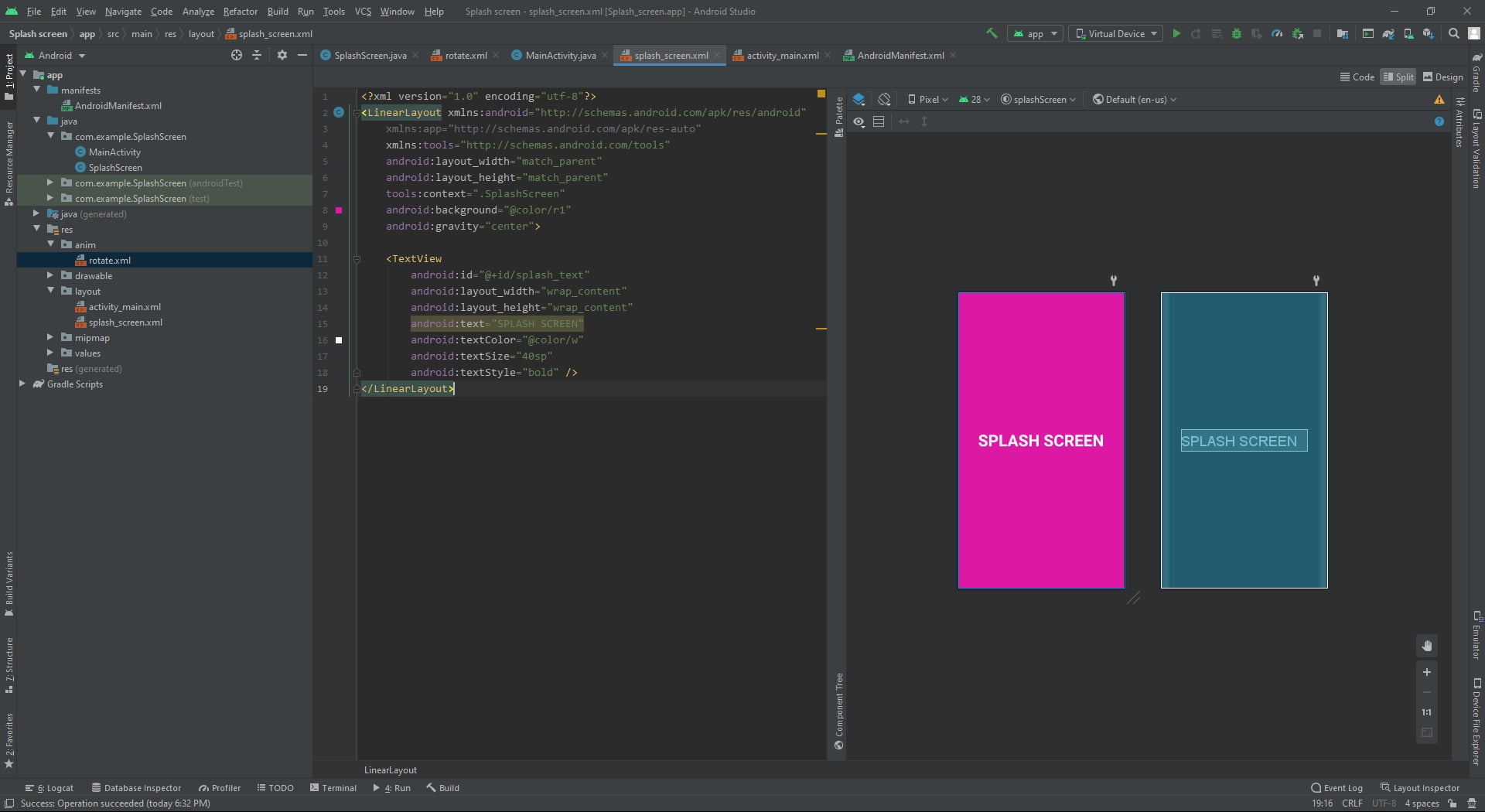
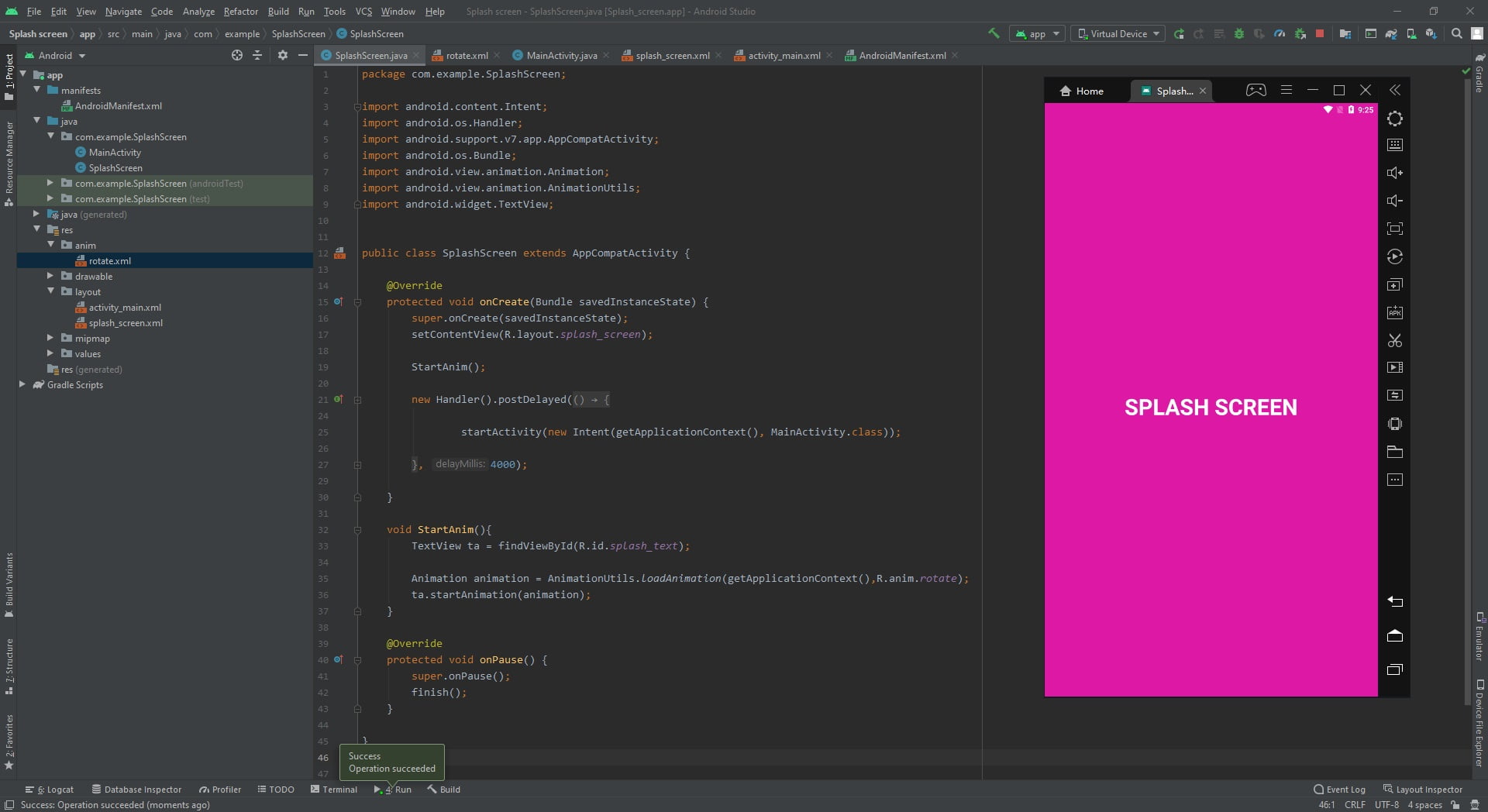
</LinearLayout>In this tutorial we create a splash screen with animation.
Sample pictures

Java code
package com.example.SplashScreen;

import android.content.Intent;
import android.os.Handler;
import android.support.v7.app.AppCompatActivity;
import android.os.Bundle;
import android.view.animation.Animation;
import android.view.animation.AnimationUtils;
import android.widget.TextView;


public class SplashScreen extends AppCompatActivity {

    @Override
    protected void onCreate(Bundle savedInstanceState) {
        super.onCreate(savedInstanceState);
        setContentView(R.layout.splash_screen);

        StartAnim();

        new Handler().postDelayed(new Runnable() {
            @Override
            public void run() {

                startActivity(new Intent(getApplicationContext(), MainActivity.class));

            }
        }, 4000);

    }

    void StartAnim(){
        TextView ta = findViewById(R.id.splash_text);

        Animation animation = AnimationUtils.loadAnimation(getApplicationContext(),R.anim.rotate);
        ta.startAnimation(animation);
    }

    @Override
    protected void onPause() {
        super.onPause();
        finish();
    }

}
package com.example.SplashScreen;
import android.support.v7.app.AppCompatActivity;
import android.os.Bundle;
public class MainActivity extends AppCompatActivity {
@Override
protected void onCreate(Bundle savedInstanceState) {
super.onCreate(savedInstanceState);
setContentView(R.layout.activity_main);
}
}XML
<?xml version="1.0" encoding="utf-8"?>
<LinearLayout xmlns:android="http://schemas.android.com/apk/res/android"
    xmlns:app="http://schemas.android.com/apk/res-auto"
    xmlns:tools="http://schemas.android.com/tools"
    android:layout_width="match_parent"
    android:layout_height="match_parent"
    tools:context=".SplashScreen"
    android:background="@color/r1"
    android:gravity="center">

    <TextView
        android:id="@+id/splash_text"
        android:layout_width="wrap_content"
        android:layout_height="wrap_content"
        android:text="SPLASH SCREEN"
        android:textColor="@color/w"
        android:textSize="40sp"
        android:textStyle="bold" />
</LinearLayout>
<?xml version="1.0" encoding="utf-8"?>
<android.support.constraint.ConstraintLayout
xmlns:android="http://schemas.android.com/apk/res/android"
xmlns:app="http://schemas.android.com/apk/res-auto"
xmlns:tools="http://schemas.android.com/tools"
android:layout_width="match_parent"
android:layout_height="match_parent"
tools:context=".MainActivity">
<TextView
android:id="@+id/textView"
android:layout_width="wrap_content"
android:layout_height="wrap_content"
android:text="Main activity"
android:textAlignment="center"
android:textSize="36sp"
android:textStyle="bold"
app:layout_constraintBottom_toBottomOf="parent"
app:layout_constraintEnd_toEndOf="parent"
app:layout_constraintStart_toStartOf="parent"
app:layout_constraintTop_toTopOf="parent" />
</android.support.constraint.ConstraintLayout><?xml version="1.0" encoding="utf-8"?>
<set xmlns:android="http://schemas.android.com/apk/res/android" android:duration="2000" >
<scale android:fromXScale="0" android:fromYScale="0" android:toXScale="1"
android:toYScale="1" android:pivotY="50%" android:pivotX="50%"/>
<rotate android:fromDegrees="0" android:toDegrees="360"
android:pivotX="50%" android:pivotY="50%"/>
<alpha android:fromAlpha="0"/>
</set>Sample pictures


Java code
package com.example.startactivityforresult;

import android.app.Activity;
import android.content.Intent;
import android.support.annotation.Nullable;
import android.support.v7.app.AppCompatActivity;
import android.os.Bundle;
import android.view.View;
import android.widget.Button;
import android.widget.Toast;

public class MainActivity extends AppCompatActivity {

    Button button;
    public static final int REQUEST_CODE =  0X996;


    @Override
    protected void onActivityResult(int requestCode, int resultCode, @Nullable Intent data) {
        super.onActivityResult(requestCode, resultCode, data);

        if(requestCode == REQUEST_CODE){

            if(resultCode == Activity.RESULT_OK){

                String str = data.getStringExtra(Main2Activity.EXTRA_DATA);
                Toast.makeText(getApplicationContext(),str,Toast.LENGTH_LONG).show();
            }
        }
    }

    @Override
    protected void onCreate(Bundle savedInstanceState) {
        super.onCreate(savedInstanceState);
        setContentView(R.layout.activity_main);

        button = findViewById(R.id.button);

        button.setOnClickListener(new View.OnClickListener() {
            @Override
            public void onClick(View v) {

                Intent intent = new Intent(MainActivity.this,Main2Activity.class);
                startActivityForResult(intent,REQUEST_CODE);
            }
        });

    }
}
package com.example.startactivityforresult;
import android.app.Activity;
import android.content.Intent;
import android.support.v7.app.AppCompatActivity;
import android.os.Bundle;
import android.view.View;
import android.widget.TextView;
public class Main2Activity extends AppCompatActivity {
TextView textView;
public static final String EXTRA_DATA = "EXTRA_DATA";
@Override
protected void onCreate(Bundle savedInstanceState) {
super.onCreate(savedInstanceState);
setContentView(R.layout.activity_main2);
textView = findViewById(R.id.textView);
textView.setOnClickListener(new View.OnClickListener() {
@Override
public void onClick(View v) {
Intent data = new Intent();
data.putExtra(EXTRA_DATA,"for result!!!!!!");
setResult(Activity.RESULT_OK,data);
finish();
}
});
}
}Sample pictures


Java code
package com.example.IntentPutextra;

import android.content.Intent;
import android.support.v7.app.AppCompatActivity;
import android.os.Bundle;
import android.util.Log;
import android.view.View;
import android.widget.Button;
import android.widget.EditText;

public class MainActivity extends AppCompatActivity {

    private static final String TAG = "MainActivity";
    Button button;
    EditText editText;

    @Override
    protected void onCreate(Bundle savedInstanceState) {
        super.onCreate(savedInstanceState);
        setContentView(R.layout.activity_main);

        Log.i(TAG, "m1_onCreate: ");

        button = findViewById(R.id.button);
        editText = findViewById(R.id.editText);

        button.setOnClickListener(new View.OnClickListener() {
            @Override
            public void onClick(View v) {

                String str = editText.getText().toString();

                Intent intent = new Intent(MainActivity.this,Main2Activity.class);

                intent.putExtra("ET",str);

                startActivity(intent);
            }
        });

    }

    @Override
    protected void onResume() {
        super.onResume();
        Log.i(TAG, "m1_onResume: ");
    }

    @Override
    protected void onStop() {
        super.onStop();
        Log.i(TAG, "m1_onStop: ");
    }

    @Override
    protected void onPause() {
        super.onPause();
        Log.i(TAG, "m1_onPause: ");
    }
}
package com.example.IntentPutextra;
import android.support.v7.app.AppCompatActivity;
import android.os.Bundle;
import android.util.Log;
import android.widget.TextView;
public class Main2Activity extends AppCompatActivity {
private static final String TAG = "MainActivity";
TextView textView;
MainActivity mm = new MainActivity();
@Override
protected void onCreate(Bundle savedInstanceState) {
super.onCreate(savedInstanceState);
setContentView(R.layout.activity_main2);
Log.i(TAG, "m2_onCreate: ");
textView = findViewById(R.id.textView);
Bundle bundle = getIntent().getExtras();
if (bundle != null) {
String s = bundle.getString("ET");
textView.setText(s);
}
}
@Override
protected void onResume() {
super.onResume();
Log.i(TAG, "m2_onResume: ");
}
@Override
protected void onStop() {
super.onStop();
Log.i(TAG, "m2_onStop: ");
}
@Override
protected void onPause() {
super.onPause();
Log.i(TAG, "m2_onPause: ");
}
}